Get Unigraphics Tutorial from begining untul advance here
Please share this blog on your social network, it's make this blog keep a live and have more post,
leave some comment if you need further help
Showing posts with label direct modeling. Show all posts

Friday, 12 June 2009

Use Direct Modeling to move face and feature in Unigraphics

Direct modeling commonly use to edit face and some face feature, when some modeling and the feature already done, and parameter was removed, we can edit the parameter directly but use direct modeling we can edit face and the feature parameter although parameter was deleted (remove parameter)
direct modeling use for
Move face
Offset region
Replace face
Pattern face
Delete face
Resize blend
Resize face
Scale Body
Constraint face

at this post i just post how to move face using direct modeling,because i just have limitation internet connection, i embed object to read online this tutorial below,


direct modeling move face - Get more Business Documents
you need adobe flash player to read this tutorial

Friday, 14 November 2008

reblend face using direct modeling feature

direct modeling that provide by Unigraphics is very help full, specially when the part parameter was removed, so we can edit it directly by clicking the parameter, but using direct modeling feature we can edit it directly.

face that was blend by certain radius value also can edit by using reblend face feature in direct modeling, to begin those feature
1. click reblend face, rebled face dialog box will appear
2. select blend part of the product or part
3. change the value
4. click Apply or OK


see picture below


i also publish video using veoh.com
see tutorial video below

Watch reblend face in How to Videos  |  View More Free Videos Online at Veoh.com

Make same face using replace face feature

this is one from various feature of direct modeling, this command available from Unigraphics NX1 until Unigraphics NX6, the function of this command is make same flat or same position of face that have different hight,
in the direct modeling feature, Unigraphics give us to editing face and solid model directly like change diameter of cylinder, or arch face, change radius of blend directly and others although the part parameter is removed.

to begin direct replace face command click the picture like below


after dialog box appear select the face that you want to move, select third button then select the target face, click OK or Apply
to make tutorial more easy to understand i post video, hope this useful

Watch direct modeling replace face in How to Videos  |  View More Free Videos Online at Veoh.com

other tutorial also available in the post
http://ugs-tutor.blogspot.com/2008/08/making-block-from-block-offset-ediitng.html

Thursday, 26 June 2008

Make Array hole in cylinder, Circular pattern, Unigraphics Tutorial


make array face in cylinder like hole, boss or other shape is easy using Unigraphics, to begin make array model, use pattern face, this icon located in direct modeling tool bar, by using this icon we can make array face, circular pattern face, rectangular array face in other.
click the icon of pattern face like picture below


if you prefer learn using video, here i capture step to make array pattern

Online Videos by Veoh.com direct

Step by Step to make circular array
1. make a cylinder with diameter 50 and height 10, you can use icon cylinder in feature toolbar, or look how to make cylinder at this post http://ugs-tutor.blogspot.com/2008/06/make-simple-bolt.html


then at the dialog box fill diameter with 50, and height 10 like picture below

2. at the cylinder make hole with diameter 5, click the icon hole at feature toolbar.

at the hole dialog box, fill the value and make sure your hole type (plain hole type- little red box at this picture)select face of cylinder using MB1 (left click)

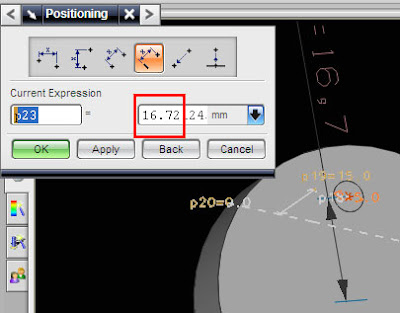
select positioning method or accept default value (it always at number 3 button from right)then click OK, or if you prefer make hole with certain value from center cylinder, choose number 4 button from right, look at picture below


then select the edge of your cylinder


select end point button, dialog box like below will appear


fill those box with 15, then click OK, now you have cylinder with one hole

3. Make circular array
click the icon like picture below
after click the icon the dialog box will appear, choose circular pattern like picture below,


fill the number and angle like picture above. then click the face of hole in the cylinder, click MB2 (center mouse button) twice until inferred vector button on, then select Z axis arrow, finished with OK button.

or see the easy tutorial via video, your browser must installed latest adobe flash player.

 
Design by Free WordPress Themes | - Premium Blogger Themes |