Get Unigraphics Tutorial from begining untul advance here
Please share this blog on your social network, it's make this blog keep a live and have more post,
leave some comment if you need further help
Showing posts with label replace face. Show all posts

Tuesday, 20 December 2011

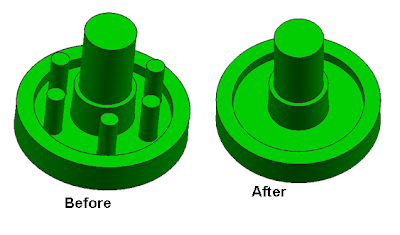
Syncronous Modeling : Replace Face, make the same high surface

replace face is very useful to change the shape so as to have the same height, so that a variety of complex shapes can be changed quickly using this feature.
By replace face, we can move or make the face height same with another face
Step 1. Click Icon Replace Face

Step 2. Dialog Box will appear, select the face that you want to change the height. make sure the Select face on Face to Replace become green checked.

step 3. select destination face or replacement face. make sure the replacement face become green checked. then click OK or Apply, by default  offset distance is zero.


Friday, 14 November 2008

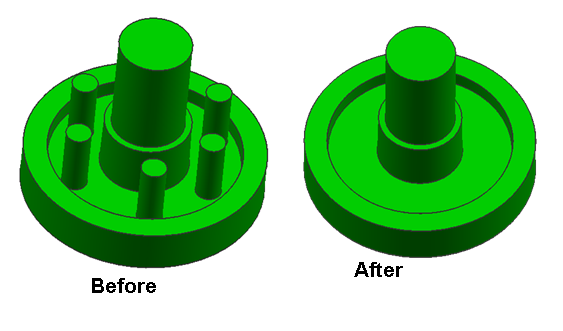
Make same face using replace face feature

this is one from various feature of direct modeling, this command available from Unigraphics NX1 until Unigraphics NX6, the function of this command is make same flat or same position of face that have different hight,
in the direct modeling feature, Unigraphics give us to editing face and solid model directly like change diameter of cylinder, or arch face, change radius of blend directly and others although the part parameter is removed.

to begin direct replace face command click the picture like below


after dialog box appear select the face that you want to move, select third button then select the target face, click OK or Apply
to make tutorial more easy to understand i post video, hope this useful

Watch direct modeling replace face in How to Videos  |  View More Free Videos Online at Veoh.com

other tutorial also available in the post
http://ugs-tutor.blogspot.com/2008/08/making-block-from-block-offset-ediitng.html

Saturday, 9 August 2008

making Block from Block, offset ediitng , Replace face

video tutorial below i make special for beginner, make block from block before or the datum reference is previous block, it's will help to design some part that use block or plate often, like mold / mould base, casting mold, injection mold and other's.

the basic step is like tutorial before, see at http://ugs-tutor.blogspot.com/2008/06/basic-block-using-two-point-and-height.html
yes.. it's basically same, the different is point that we must selected, then the editing after we make the block.

see the video below

Online Videos by Veoh.com

Editing Process
below some editing that i use in those video

Replace Face
use this icon to activated replace face.


after you click those icon, the dialog box will appear, first selection, select the face that you want edit, second button selection is for reference face that you wanted. first face will same with the second face position.
it's fast way to edit face than we fill some value.


Offset Editing
to learn step by step to offset editing you can look at previous post
http://ugs-tutor.blogspot.com/search/label/offset


use the icon like picture below to activated offset operation

 
Design by Free WordPress Themes | - Premium Blogger Themes |