Get Unigraphics Tutorial from begining untul advance here
Please share this blog on your social network, it's make this blog keep a live and have more post,
leave some comment if you need further help
Showing posts with label cylinder. Show all posts

Saturday, 27 September 2008

making cone with cylinder base

Now let's turn with beginner level again, simple way to make cone with subtract at the end with cylinder, now to make easier learning from this blog, i post include the dimension of the part that we'll make it.

the dimension is very simple, cylinder with cone, to drawing it in Unigraphics actually is divide in 2 part, cylinder and cone, you can make cone first then cylinder or cylinder first than cone, because the datum of X,Y,Z is located in cylinder, i prefer begin it from cylinder, because it more easy.

Ok, see the the dimension below


first time make the cylinder with height 30 and diameter 10
than make cone with base cylinder, height 15, base diameter 10 and half angle 10

to learn more see video below

Thursday, 26 June 2008

Make Array hole in cylinder, Circular pattern, Unigraphics Tutorial


make array face in cylinder like hole, boss or other shape is easy using Unigraphics, to begin make array model, use pattern face, this icon located in direct modeling tool bar, by using this icon we can make array face, circular pattern face, rectangular array face in other.
click the icon of pattern face like picture below


if you prefer learn using video, here i capture step to make array pattern

Online Videos by Veoh.com direct

Step by Step to make circular array
1. make a cylinder with diameter 50 and height 10, you can use icon cylinder in feature toolbar, or look how to make cylinder at this post http://ugs-tutor.blogspot.com/2008/06/make-simple-bolt.html


then at the dialog box fill diameter with 50, and height 10 like picture below

2. at the cylinder make hole with diameter 5, click the icon hole at feature toolbar.

at the hole dialog box, fill the value and make sure your hole type (plain hole type- little red box at this picture)select face of cylinder using MB1 (left click)

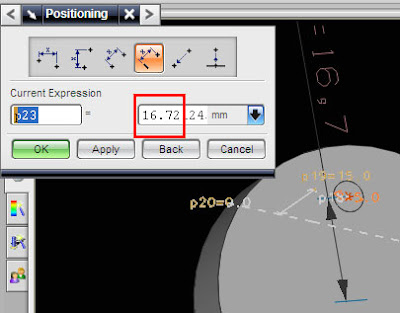
select positioning method or accept default value (it always at number 3 button from right)then click OK, or if you prefer make hole with certain value from center cylinder, choose number 4 button from right, look at picture below


then select the edge of your cylinder


select end point button, dialog box like below will appear


fill those box with 15, then click OK, now you have cylinder with one hole

3. Make circular array
click the icon like picture below
after click the icon the dialog box will appear, choose circular pattern like picture below,


fill the number and angle like picture above. then click the face of hole in the cylinder, click MB2 (center mouse button) twice until inferred vector button on, then select Z axis arrow, finished with OK button.

or see the easy tutorial via video, your browser must installed latest adobe flash player.

Tuesday, 17 June 2008

Make simple Bolt


at the post, we will learn to make simple bolt using Unigraphics NX5 software.
step to make simple bolt are
1. make cylinder for bolt body
2. make cylinder for bolt head
3. unite those two cylinder
4. give chamfer operation at bottom and top of bolt

you also can see those step by see this video


Cylinder
to begin make cylinder, choose the icon like picture below


at the cylinder dialog box, fill the height and diameter, then click OK, basically if we don't define datum of the cylinder it will make from 0.0.0 datum.


from the cylinder that was created, make one more cylinder for bolt head, at this example we use ISO Standard Bolt, with diameter body 4 mm, height body 8mm, head high 4mm, and diameter 7mm.
to make second cylinder, after fill the diameter and height, before click OK, select face of first cylinder, choose face will became datum of second cylinder. to make easier select use inferred point.


Chamfer

to make chamfer select chamfer icon, then click the edge at head bolt and bottom bolt like picture above

 
Design by Free WordPress Themes | - Premium Blogger Themes |