Get Unigraphics Tutorial from begining untul advance here
Please share this blog on your social network, it's make this blog keep a live and have more post,
leave some comment if you need further help

Friday, 14 November 2008

reblend face using direct modeling feature

direct modeling that provide by Unigraphics is very help full, specially when the part parameter was removed, so we can edit it directly by clicking the parameter, but using direct modeling feature we can edit it directly.

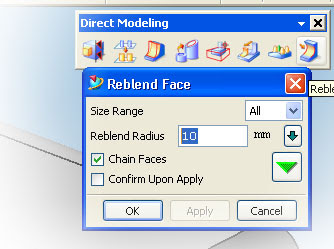
face that was blend by certain radius value also can edit by using reblend face feature in direct modeling, to begin those feature
1. click reblend face, rebled face dialog box will appear
2. select blend part of the product or part
3. change the value
4. click Apply or OK


see picture below


i also publish video using veoh.com
see tutorial video below

Watch reblend face in How to Videos  |  View More Free Videos Online at Veoh.com

Make same face using replace face feature

this is one from various feature of direct modeling, this command available from Unigraphics NX1 until Unigraphics NX6, the function of this command is make same flat or same position of face that have different hight,
in the direct modeling feature, Unigraphics give us to editing face and solid model directly like change diameter of cylinder, or arch face, change radius of blend directly and others although the part parameter is removed.

to begin direct replace face command click the picture like below


after dialog box appear select the face that you want to move, select third button then select the target face, click OK or Apply
to make tutorial more easy to understand i post video, hope this useful

Watch direct modeling replace face in How to Videos  |  View More Free Videos Online at Veoh.com

other tutorial also available in the post
http://ugs-tutor.blogspot.com/2008/08/making-block-from-block-offset-ediitng.html

Saturday, 18 October 2008

multiple copy part using transfrom in Unigraphics

when works with part that have a pattern or same shape, using multiple copy is very helpful, although various way to create multiple part available in Unigraphics, at this tutorial focused using transform and multiple copy button only.
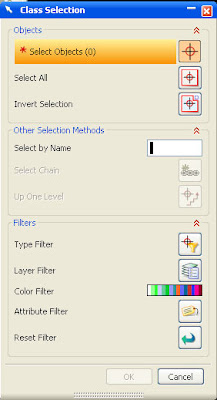
to begin transform operation click transform button or using short cut CTRL+T, the transform dialog box will appear like picture below


the target from this tutorial is make multiple part from single part, like picture below


those pattern part made from one block, which choose button when using transform, those pattern can be made more fast.

Watch copy multiple part in How to Videos  |  View More Free Videos Online at Veoh.com
Step to make those pattern part are
1. make the block with dimension
X = 100
Y = 100
Z = 50

2. change the color by using CTR + J
3. click transform icon (CTRL + T)
4. select the part,OK
5. select and click Tranfrom Button
6. select delta
X = 50
Y = 50
Z = 0
7. Click OK
8. select multiple copy Avail
at the number of copies column fill the 5 or any number what you like, select OK,
Select Cancel to end the operation
9. Right Click and select FIT to fit with your screen.

at those video, the part before multiple operation selected, i try to copy, and move,i hope it's more help to understand the different between copy, move and multiple copy, you can also Undo the operation by click Undo the last Operation

Wednesday, 8 October 2008

Starting Drafting a model in Unigraphics

after we make some model, or part, we need draft the model, drafting is not just give the measure of size of model, but we can put tolerance, setting width of line in drafting and plot it.
oke, let's start drafting in unigraphics NX
to start drafting, from start klik drafting, like picture below


after click drafting, the window will change to drafting window, like picture below

(please click it to enlarge, the fact in picture above have grid view and clear toolbar icon)

first time the drafting environment start, it always have grid in the screen, we can remove it by clicking
1. preferences
2. Work Plane
3. after Work Plane window appear, uncheck grid check box, like picture below


when starting drafting, we always get some question about new sheet parameter in sheet window like picture below

set standard size, then select paper size that you want use in drafting, it's from A0 until A4, after select paper size, select scale of part 1:1 it mean drafting and real model will same. then click OK.


video below will explain more clear step by step to begin drafting


Watch start drafting in How to Videos  |  View More Free Videos Online at Veoh.com

Base View
Base view is first view that will become base, from this view we will make other projected view, we can select various kind of base view, not always from top, for example right view, left view or bottom view can also become base view. at the base view window we can also select scale, and part or model if we have more than one model or part in modeling worksplane. picture below is little explanation of base view

Sunday, 28 September 2008

setting environment of Unigraphics NX 5, background and line width

default setting in UGS NX 5 and previous UGS the line thickness of part is always width, this view is doesn't good when we design a lot of part, because it'll difficult to find touching line between face and face.
so some designer product that using UGS always like the thickness or line part is thin, because it more comfortable in our eyes.
to change the width of line product step are
1. goto preferences
2. visualization
3. go to tab line
4. remove check on the width check box
5. click apply
6. click cancel

video below is step by step tutorial to change the thickness line of part.


Online Videos by Veoh.com

beside change the the thickness line of part, at video above we can also learn how to setting your background, setting the NX5 Environment. it same with setting the thickness, but click color tab to edit the background color.

set the background with your favorite color

Saturday, 27 September 2008

making cone with cylinder base

Now let's turn with beginner level again, simple way to make cone with subtract at the end with cylinder, now to make easier learning from this blog, i post include the dimension of the part that we'll make it.

the dimension is very simple, cylinder with cone, to drawing it in Unigraphics actually is divide in 2 part, cylinder and cone, you can make cone first then cylinder or cylinder first than cone, because the datum of X,Y,Z is located in cylinder, i prefer begin it from cylinder, because it more easy.

Ok, see the the dimension below


first time make the cylinder with height 30 and diameter 10
than make cone with base cylinder, height 15, base diameter 10 and half angle 10

to learn more see video below

Tuesday, 23 September 2008

making simple pastic part, hole and shell from 2D data

although that in previous post we has learn how to make simple shell, below i try to post some more interesting using shell and hole to make simple plastic part.

oke below is the drafting, include 2D CAD data, hope from those 2D let's try to make become 3D data


just click the image to enlarge
from those 2D data after we make become 3D data is like picture below


then how to make those step by step using fast and simple way in Unigraphics? video below is the answer, after watching video below, try it by your self.
the simple step to make those part are
1. make the outline , Box 50 x 50 x 50
2. make the hole, diameter 30 and from the posisition is center (25 from each side)
3. make the thickness using shell, with value 2


Online Videos by Veoh.com

 
Design by Free WordPress Themes | - Premium Blogger Themes |